Klaviyo
Log a Form Completed event on a person's Klaviyo profile when they complete your form, and add people who tick a box to a Klaviyo list.
Connect Klaviyo and every completed form logs a Form Completed event on the profile of the person who filled it in. Use it to start a flow, such as a thank-you email with a coupon, and put their responses in that email.
You can also add people to a Klaviyo list: link an optional tick box on your form, such as "Send me offers", to a list, and everyone who ticks it is added.
How it works
- Connect your Klaviyo account and add the forms that should report to it
- Put your form's normal link in a Klaviyo email or flow
- When someone clicks it and completes the form, their Klaviyo profile gets a Form Completed event, with each response as its own field
- Optionally, link a tick box to a Klaviyo list, and everyone who ticks it is added to that list
Setup
1. Connect Klaviyo
- Open Integrations in your Clipform dashboard and choose Klaviyo
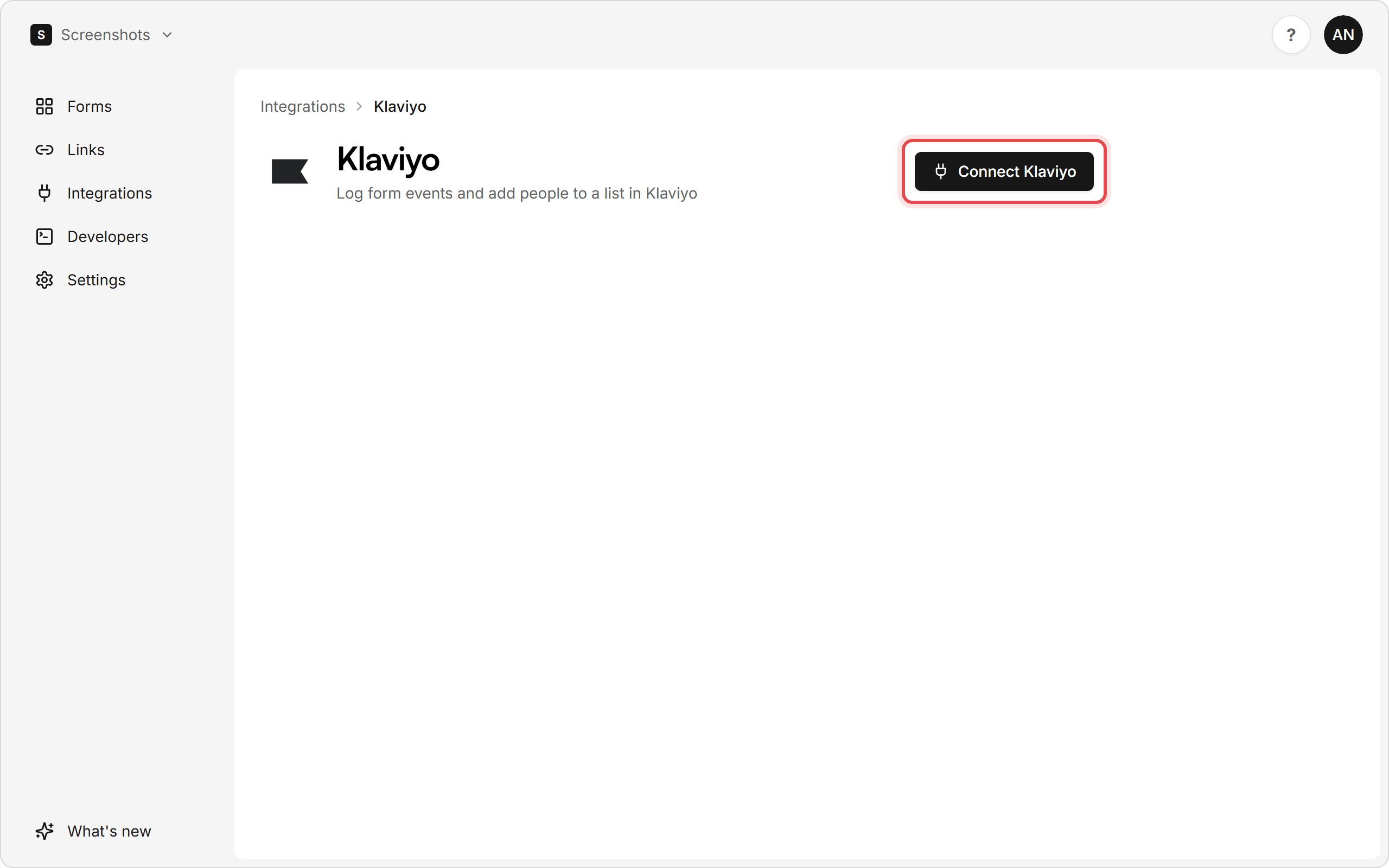
- Click Connect Klaviyo
- Pick your Klaviyo account and click Allow on Klaviyo's screen
- You're sent back to Clipform, and the Connection card shows your account
2. Add your forms
On the Klaviyo page, click Add form on the Forms card and pick a form. It starts sending at once, and you don't need to publish it again.
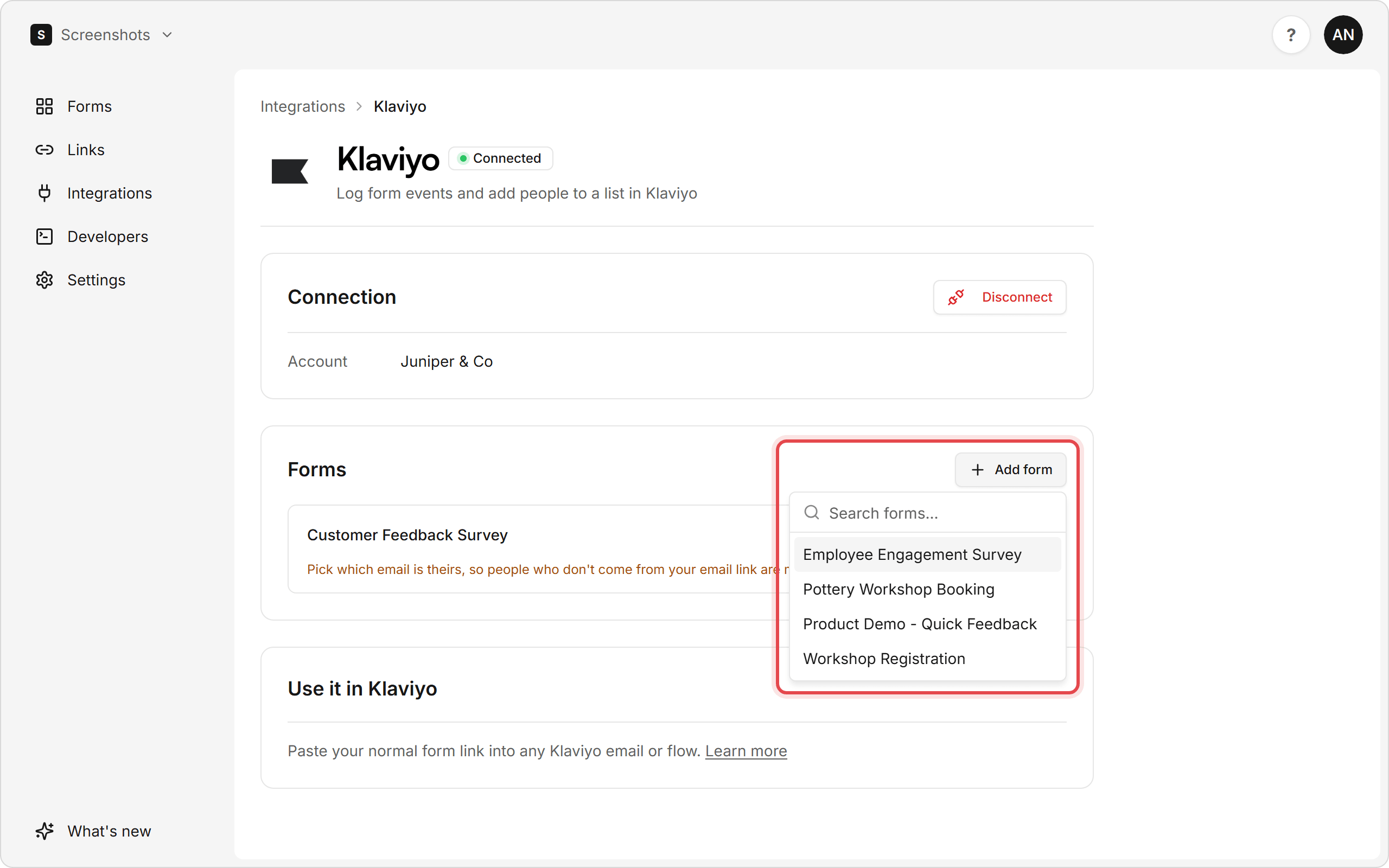
You can also add a form from inside it: open its Share tab, then Email, choose Klaviyo as your email tool and click Add this form.
3. Pick their email
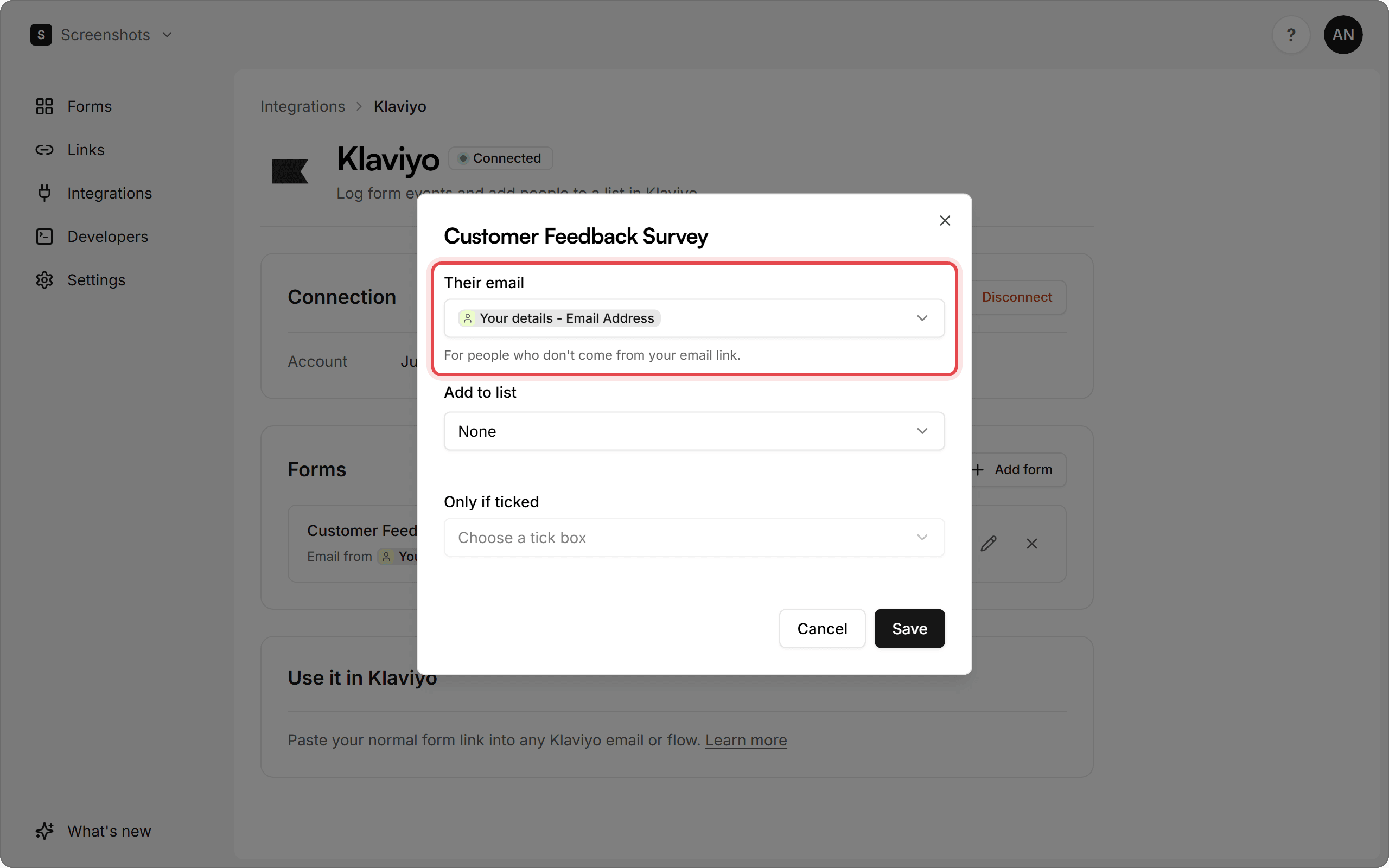
If your form asks for an email, click Edit on the form's row and pick it under Their email. People who open the form without your Klaviyo link are then matched by the email they type. Without a pick, only people who come from your Klaviyo email are matched.
4. Add people to a list (optional)
- On a Details step of your form, click Add agreement and type its wording, such as "Send me offers by email". Click its red asterisk so it turns grey: the box is now optional. Your form also needs an email field, such as Email Address on the same Details step. Then publish the form.
- On the Klaviyo page, click Edit on the form's row and pick their email under Their email. The list needs it.
- Under Add to list, pick one of your Klaviyo lists.
- Under Only if ticked, pick the tick box, then click Save.
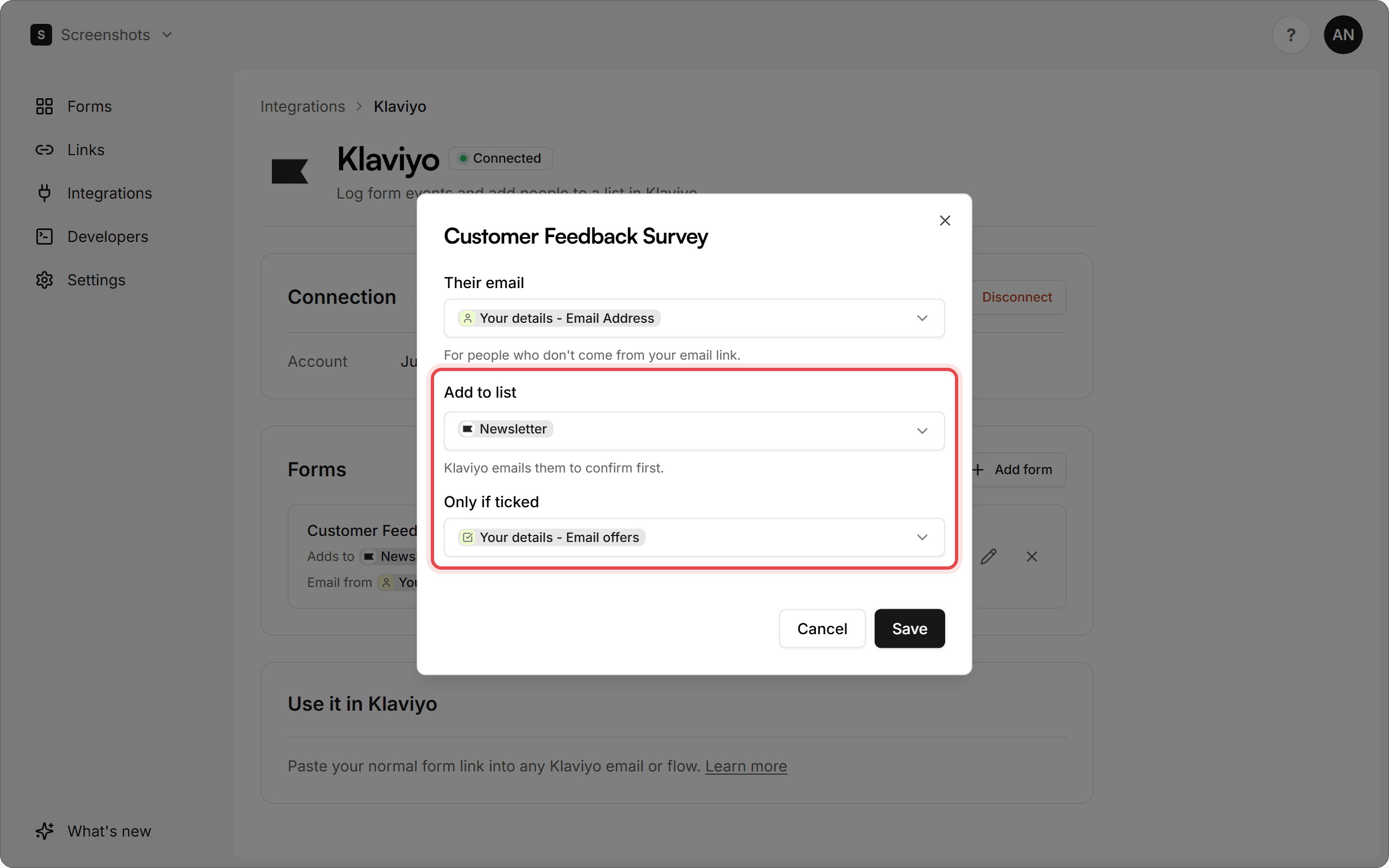
The form's row then reads Adds to your list if they tick your box. Save stays off while a list has no tick box or no email picked.
If Add to list says Your Klaviyo connection can't add to lists yet, your connection was made before list signup and doesn't have the list permissions yet. Click Reconnect, then pick the same Klaviyo account and click Allow. Your forms and settings stay as they are.
5. Put the link in Klaviyo
Paste your form's normal share link into any Klaviyo email or flow, as a button or a text link.
What happens in Klaviyo
| Who completes the form | What Klaviyo gets |
|---|---|
| Someone who clicked your link in a Klaviyo email | Form Completed on their profile, with Matched By set to Email Link |
| Someone who came another way and typed the email you picked | Form Completed on that email's profile, which Klaviyo creates if it's new, with Matched By set to Typed Email |
| Anyone else | Nothing is sent |
If your form has a Details step, the first and last name typed there are saved on the profile, and the phone number too when it has a country code. Clipform uses the step with the email you picked, else the first Details step.
Each completed form is logged once, even if the send is retried.
How list signup works
- When: as soon as both the ticked box and the email you picked are saved, which can be on different steps. Someone who ticks the box and leaves before the end of the form is still added.
- Who: only people who tick the box you picked, using the email they typed in the field you picked under Their email. A required agreement can't be picked, so it never signs anyone up.
- Opt-in: the list's own opt-in setting in Klaviyo decides. On a double opt-in list, Klaviyo emails them to confirm first and adds them once they do. On a single opt-in list, they're added at once.
- Never removed: Clipform never unsubscribes anyone or takes them off a list. Unticking the box later changes nothing in Klaviyo.
Keep the list on double opt-in
We recommend double opt-in for any list you add people to from a form. Bots can type other people's emails into public signup forms ("list bombing"), and the confirm email stops those addresses joining your list. Read Klaviyo's guide to list bombing. When you pick a single opt-in list, the settings show "Anyone who ticks is added at once. Klaviyo recommends double opt-in."
Signup limits
To slow bots down, Clipform limits signups:
- About 10 people an hour from one internet connection (IP address)
- About 1,000 people an hour to each form
Both are approximate. Someone over a limit isn't added to the list, but their responses are still saved.
The same email is also subscribed at most once every 30 minutes for each Klaviyo account, as Klaviyo asks. A second signup to the same list in that time is skipped, because they're already on it or have a confirm email on the way. A signup to a different list waits until the 30 minutes are up, then goes through.
What lands on the profile
- They're subscribed to email marketing and added to the list, with the source set to Clipform: and your form's name, such as Clipform: Customer Feedback Survey.
- Three properties record what they agreed to: Clipform consent wording (the exact wording of the box they ticked), Clipform consent time (when they saved that step) and Clipform consent form (the form's name).
- The first and last name they typed, if any. The signup never sends their phone number or subscribes anyone to SMS.
Use it in a flow
- Complete your form once yourself from a Klaviyo email. Form Completed shows up in Klaviyo after its first event.
- In Klaviyo, create a flow and choose the Form Completed metric as the trigger.
- Add a trigger filter or a split on a response field, for example only people who answered "Yes" to a question.
- Use the fields in the email. Field names have spaces, so use Klaviyo's lookup tag:
{{ event|lookup:'Response URL' }}.
Fields on the event
- Each response is its own field, named after its step's name on the builder card. A step with no name uses its question. Renaming a step renames its field, so update any flow filter that uses it.
- A Details step sends one field per detail, such as First Name and Email Address, or a custom field's own name. Agreements aren't sent.
- Button steps send nothing.
- Numbers stay numbers, so a filter can use "is greater than".
- Some responses add a typed field next to it, such as
Your photo: Photoswith the number of photos. - Response URL opens the full response in Clipform, with every file and agreement. A long answer is cut at 2,000 characters on the event, and media links expire, but this link has it all.
- The form's details, such as Form Name and Submitted At, and any variables from the link come along too.
FAQ
Why didn't an event show up?
- The person didn't come from your Klaviyo email, and no email is picked under Their email (or they left it blank).
- Klaviyo's click tracking is off. Klaviyo names who clicked only while Email to website tracking and Track email clicks are on, under Settings > Email > Tracking. Both are on by default. Open Klaviyo tracking settings
- The form isn't on the Klaviyo page's Forms card.
- The form wasn't completed. The event is logged only when someone finishes it.
Why wasn't someone added to my list?
- No Edit button on the form's row? Your published form has no email field yet. Add one, such as Email Address on a Details step, and publish the form.
- They didn't tick the box, or unticked it again before Clipform sent it.
- The email field you picked under Their email was left blank, or what they typed isn't an email address.
- The list is on double opt-in and they haven't confirmed yet. Klaviyo adds them once they click the link in its confirm email, so ask them to check their spam folder.
- Your connection was made before list signup. Click Edit on the form's row, then Reconnect (see step 4).
- The list was deleted in Klaviyo. Pick another list under Add to list.
- They went over a signup limit, for example many signups from one office network in the same hour.
- The same email signed up to another of your lists in the last 30 minutes. This signup waits for the 30 minutes to pass, then goes through.
My form asks for two emails. Which one is used?
The one you pick under Their email. For the event, a click from your Klaviyo email wins, because it names the person who clicked. A list signup always uses the email they typed in the field you picked.
Does Clipform subscribe anyone in Klaviyo?
Only if you set up Add to list, and only people who tick the box you picked. They're subscribed to email marketing and added to that list, after they confirm when the list is on double opt-in. Clipform never unsubscribes anyone, and a phone number never subscribes them to SMS. Without a list, Clipform only logs the event and saves their name and phone.
What does Clipform ask Klaviyo for?
When you connect, Clipform asks Klaviyo for permission to:
- Log events, for Form Completed
- Read your account, to show its name on the Connection card
- View and edit lists, to show your lists under Add to list and add people to the one you pick. Klaviyo needs list edit access to add someone to a list, and it can't be limited to just that. Clipform never creates, renames or deletes a list, or removes anyone from one.
- Update profiles, for the name and the consent record
- Update subscriptions, to subscribe the people who tick your box
Which steps send a field?
Every step that collects an answer. See Node Types for what each step collects.
Can I connect more than one Klaviyo account?
One Klaviyo account connects to each workspace.
Disconnecting
Open Integrations, then Klaviyo, and click Disconnect. Forms stop sending events and adding people to lists until you connect again. If you remove Clipform from your Klaviyo account, the connection shows as disconnected here.