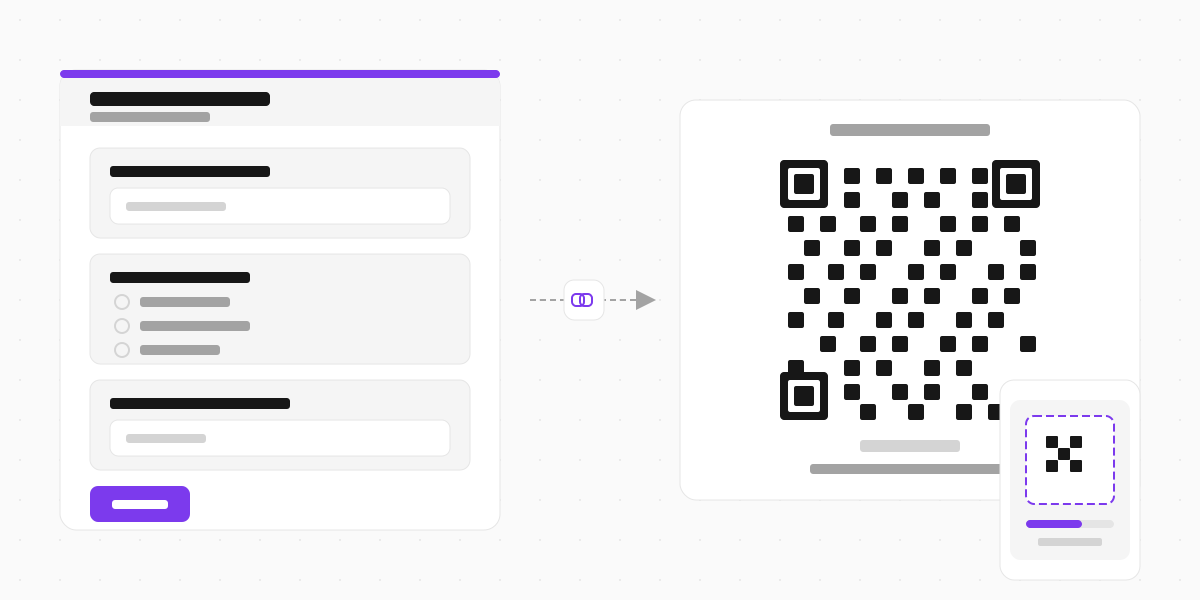
Google Forms doesn't have a built-in QR code option. If you want people to scan and fill out your form from a poster, badge, table tent, or slide deck, you need to generate one yourself.
The good news: it takes about two minutes. You copy your form's link, paste it into a free QR code generator, and download the image. This guide walks through the process, covers the mistakes that trip people up, and shows you where to actually place your QR code so people scan it.

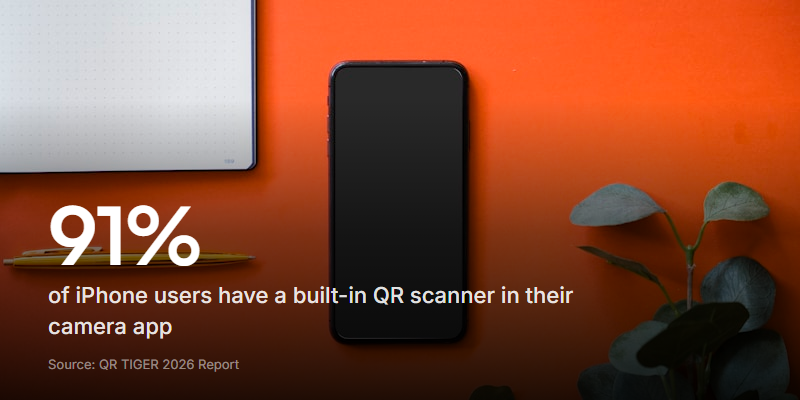
QR codes aren't a novelty anymore. QR TIGER's 2026 report tracked a 211% increase in QR code scans across their platform between 2024 and 2026. Most smartphones now have scanners built into their default camera app - 91% of iPhones (2017 or newer) and 86% of Android devices (OS 9.0+) can scan without downloading anything extra, according to the same report. Your audience already knows how to use them.
Get your Google Form link
Before you can generate a QR code, you need the shareable URL for your form.
- Open your form in Google Forms
- Click the Send button (top right)
- Click the link icon (the chain link, second tab)
- Optionally tick Shorten URL to get a cleaner link
- Click Copy
That link is what your QR code will point to. Anyone who scans it lands directly on the form.
One thing to watch: if your form is restricted to "Only people in my organisation," anyone outside your Google Workspace will hit a sign-in wall after scanning. For public-facing forms (event feedback, customer surveys, registration), make sure the form is set to collect responses from anyone.
How to generate the QR code
You have two options: a standalone QR code generator, or a Google Workspace add-on. Both work fine. The standalone route is faster for a one-off.
Option 1: Use a free QR code generator
Dozens of free tools do this. Here are reliable ones that don't require an account:
- QRCode Monkey - free, no watermark, lets you add colours and a logo
- QR Code Generator - clean interface, supports dynamic codes on paid plans
- ME-QR - simple, exports as PNG or SVG
The process is the same for all of them:
- Paste your Google Form link into the URL field
- (Optional) Customise the colour, shape, or add a logo
- Click Generate or Create QR Code
- Download as PNG (for print) or SVG (for design tools)
That's it. You now have a QR code image you can drop into a flyer, slide, email, or menu card.
Option 2: Use a Google Workspace add-on
If you create forms regularly and want QR codes without leaving Google Forms:
- Open your form
- Click the three-dot menu (top right) and select Get add-ons
- Search for "QR code" in the Google Workspace Marketplace
- Install one of the QR code add-ons (the QR code for Google Forms add-on is popular)
- Once installed, the add-on generates a QR code from your form's URL directly inside the editor
The add-on approach is handy if you're managing several forms and want to generate codes quickly. For a single form, the standalone generator is just as fast.
Static vs dynamic QR codes
Most free generators create static QR codes. The URL is baked into the code pattern itself. It works forever, but if you need to change the destination later (say you create a new version of the form), you'd need to generate and reprint a new QR code.
Dynamic QR codes use a redirect URL. You can update where the code points without reprinting anything. Most QR code platforms offer dynamic codes on their paid plans.
For a Google Form that won't change, static is fine. If you're printing hundreds of flyers for an event and might need to swap the form link later, dynamic codes are worth considering.
Test before you share
This step gets skipped surprisingly often, and it's the one that saves you from wasting a print run.
Before you put your QR code on anything:
- Scan it with your phone camera. Does it open the right form?
- Try it on both iPhone and Android. Camera apps handle QR codes slightly differently
- Check the form loads properly on mobile. Google Forms is functional on phones but can feel cramped on smaller screens, especially with long forms or grid questions
- Test at the size you'll actually print. A QR code that works at full screen on your monitor might not scan when shrunk to 2cm on a business card
A good minimum print size is 2cm x 2cm (about 0.8 inches). Anything smaller and older phone cameras may struggle, especially in poor lighting. For posters or banners meant to be scanned from a distance, go bigger - at least 10cm x 10cm for scanning from a metre or more away.
Where to put your QR code
Having a QR code is one thing. Getting people to actually scan it is another. Placement matters more than most guides mention.
Print materials
- Event badges and lanyards - attendees scan each other's codes to connect or fill out peer feedback
- Table tents at restaurants or cafes - "Scan to leave feedback" works well when someone's already seated and has their phone out
- Product packaging - post-purchase feedback, warranty registration, recipe suggestions
- Flyers and posters - works best with a clear call to action next to the code ("Scan to register" beats a lonely QR code with no context)
- Receipts - compact enough to fit, and customers already have the paper in hand
Digital placements
- Presentation slides - during talks, workshops, or webinars. Give the audience 10-15 seconds to scan before moving on
- Email signatures - links to a feedback form or booking page
- Social media posts - less common, since social is already digital (just use a link), but useful for screenshots of physical setups
The golden rule
Always pair your QR code with a short instruction. "Scan to register," "Scan for the feedback form," or "Scan to RSVP" tells people what they'll get. A QR code sitting alone on a wall with no context gets ignored.
Common mistakes to avoid
Using a shortened URL inside the QR code. Some people shorten their Google Form link with bit.ly first, then generate a QR code from the shortened link. This adds an extra redirect, which slows down loading and can trigger security warnings on some phones. Paste the original Google Form link directly into the generator.
Forgetting to set the form to public. If your form requires a Google sign-in, anyone without a Google account (or anyone not signed in on their phone's browser) can't fill it out. For public QR codes, set the form to accept responses from anyone.
Printing too small. QR codes have a minimum viable size. Below about 2cm, scanning becomes unreliable. If your code needs to be tiny (a business card, for example), test it at that size before you print 500 of them.
Not including error correction. Most generators default to medium error correction (level M), which is fine. But if you're placing a QR code where it might get partially covered or damaged (outdoor signage, stickers on curved surfaces), look for a generator that lets you set high error correction (level H). It makes the code slightly denser but more resilient.
No call to action. A QR code by itself doesn't tell anyone what happens when they scan it. "Scan to give feedback" converts better than a bare code every time.
When a Google Form isn't the right fit
Google Forms works for straightforward surveys and registration forms. But there are situations where the form itself is the bottleneck, not the QR code.
A few things Google Forms doesn't do:
- Video or audio responses. If you want customers to record a testimonial, explain a problem, or give verbal feedback, Google Forms only supports text
- Branded design. Google's template options are limited. Your form will always look like a Google Form, which can feel out of place on branded materials
- Built-in QR codes. As this whole article demonstrates, you need a third-party tool every time
If you're hitting these limits, form builders like Clipform handle all three. QR codes are generated automatically in the share dialog - no external tool needed. Forms are fully themeable, and respondents can record video or audio answers directly in the browser.
Already have a Google Form you want to upgrade? Clipform's form import lets you paste your Google Form URL and creates a Clipform version automatically. Your questions, options, and structure carry over - you just get better design, built-in QR sharing, and video responses on top.
Printing tips for QR codes
If you're putting your QR code on physical materials, a few practical details help:
- File format: Use PNG at 300 DPI or SVG for print. SVG scales to any size without pixelation. Most generators offer both
- Contrast: Dark code on a light background. Black on white is safest. Avoid putting QR codes on patterned or photographic backgrounds
- Quiet zone: Leave white space around the QR code (the "quiet zone"). Most generators include this automatically, but if you're cropping the image, don't cut into it. Scanners need that margin to detect the code boundaries
- Placement height: On signage, put QR codes at chest height (roughly 1-1.3 metres from the ground). Eye-level or higher forces people to hold their phone at an awkward angle
Tracking scans
A standard static QR code doesn't tell you how many people scanned it. If tracking matters (and for events or campaigns, it usually does), you have a few options:
- Use a dynamic QR code from a platform like Bitly or QR TIGER. These track scan count, location, device type, and time. Most require a paid plan
- Add UTM parameters to your Google Form link before generating the code. Something like
?utm_source=poster&utm_medium=qrappended to the URL. Google Forms won't show you UTM data natively, but if you connect to Google Analytics or look at referral data, you can see which QR placements drive the most responses - Use a form builder with built-in analytics. Clipform's analytics dashboard tracks views, starts, and completions by source, device, and location - without needing UTM tags or third-party tracking
Quick comparison: your options
| Google Form + QR generator | Google Form + add-on | Clipform | |
|---|---|---|---|
| QR code generation | External tool required | Add-on in Google Forms | Built into share dialog |
| Cost | Free | Free (most add-ons) | Free tier available |
| Tracked QR codes | Paid (via QR platform) | Usually not | Built-in tracked links |
| Response types | Text only | Text only | Text, audio, video |
| Mobile experience | Functional but basic | Same as Google Forms | Mobile-optimised |
| Branding | Google's templates | Google's templates | Fully themeable |
| Analytics | Basic (response count) | Basic | Views, completions, demographics |
| Import from Google Forms | - | - | Yes, paste URL to import |
Does Google Forms have a built-in QR code feature?
No. Google Forms doesn't generate QR codes natively. You need to copy your form's link and use a separate QR code generator or install a Google Workspace add-on.
Are QR codes for Google Forms free?
Yes. Several QR code generators (QRCode Monkey, ME-QR, The QR Code Generator) create static QR codes for free with no watermark. Dynamic QR codes with tracking usually require a paid plan.
What's the minimum size for a printed QR code?
About 2cm x 2cm (0.8 inches) for close-range scanning. For posters or signage meant to be scanned from a metre or more away, go at least 10cm x 10cm. Always test at the actual print size before a full print run.
Can I track how many people scan my QR code?
Static QR codes don't include tracking. To track scans, use a dynamic QR code from a platform like Bitly or QR TIGER (usually paid), or add UTM parameters to your Google Form link and check referral data in Google Analytics.
Can I change where my QR code points after printing?
Only if you used a dynamic QR code. Static QR codes have the URL permanently encoded - changing the destination means generating and reprinting a new code. Dynamic QR codes let you update the destination URL without changing the printed code.
What if my Google Form requires sign-in?
If your form is set to "Only people in my organisation" or "Collect email addresses (requires sign-in)," anyone scanning without a Google account will be blocked. For public QR codes, set the form to accept anonymous responses.
Start sharing your form
Creating a QR code for a Google Form takes less time than reading this guide. Copy the link, paste it into a generator, download the image. Done.
The harder question is whether Google Forms is the right tool for what you're collecting. For a quick internal survey, it's perfectly fine. For anything customer-facing where branding, mobile experience, or richer response types matter, it's worth looking at alternatives.
If you want to try Clipform, the free tier includes QR code sharing, video responses, and full theming. And if you've already built your form in Google Forms, you can import it directly and keep everything you've set up.